
Coming soon to the App Store
A trackpad on your wrist.
Wremote turns your Apple Watch into a trackpad for your Mac or PC.

How it works
Set it up once.
Then raise your wrist.
Three steps, then your watch connects to your Mac or PC by itself.
-
Step 1
Get both apps.
Wremote on your Apple Watch, and the free helper on your Mac or PC. Open Wremote on your watch and start the free trial.
-
Step 2
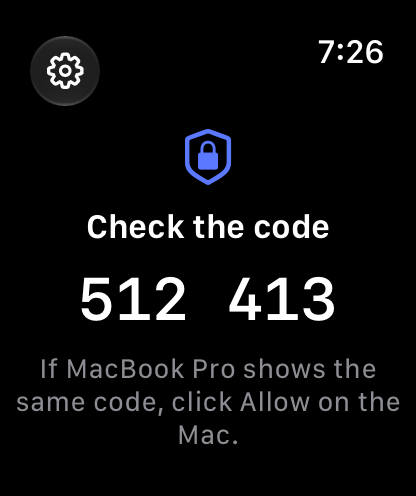
Check the code.
Both screens show the same 6‑digit code. Click Allow on your Mac or PC, and you’re paired.
-
Step 3
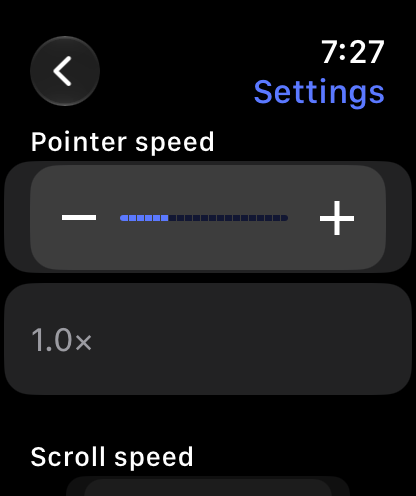
Make it feel right.
Pointer speed, scroll speed and reverse scrolling are behind the gear. Set them once, then drag, tap and scroll.
Gestures
The trackpad basics.
On your watch.
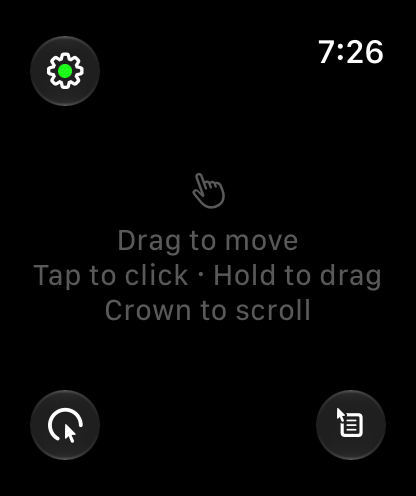
Drag, tap and scroll the way your fingers already know.
-
Drag to move the pointer.
Faster strokes go further. Slow ones stay precise.
-
Tap to click.
Two quick taps double-click.
-
Hold to drag.
Wait for the tap on your wrist, then drag to select text or move a window.
-
Turn the Digital Crown to scroll.
Set the speed, or reverse the direction, in settings.
-
Or pinch to click.
Tap your finger and thumb together twice. On Apple Watch Series 9, Apple Watch Ultra 2 and later, with watchOS 11.
-
Two buttons.
The bottom-left button clicks. The bottom-right one right-clicks.
-
A dot shows the link.
Green on a strong signal, shading to red as it weakens, and flashing red while it reconnects.
-
Lower your wrist to pause.
Nothing is sent until you raise it again. On watches with Always On, the screen shows Paused.
-
Stay connected longer.
In the watch’s Settings, choose General, Return to Clock, Wremote, After 1 hour.
Direct Bluetooth
Nothing in between.
Your watch talks straight to your Mac or PC over Bluetooth. No iPhone app, no Wi‑Fi, no servers.
-
No backlog.
The watch sends only the latest movement each time Bluetooth is ready for more.
-
Smooth on screen.
Your Mac or PC spreads each movement across screen refreshes, so the pointer moves smoothly.
Pairing and security
Paired to you.
And only you.
Only a watch you allowed can control your Mac or PC.
For example, 512 413. A new code each time you pair, worked out from both devices’ keys.
-
Signed and numbered.
Every input packet is signed and numbered, so altered or replayed packets are dropped.
-
Private keys stay put.
Each private pairing key stays in the Keychain on your watch or Mac, or in Windows key storage, and never leaves it.
-
Off the internet.
Pairing and input never touch the internet or a server.
Mac and Windows
Made for your Mac.
A test version for Windows.
A small free helper on your Mac or PC receives the input and moves the pointer.

-
Mac
Lives in the menu bar. It needs Accessibility permission to move the pointer.
-
Windows Test version
Lives in the notification area. It’s a test version, free on request.
Pricing
One price.
No subscription.
Try it all before you pay. The Mac and Windows helpers are free.
Wremote Pro
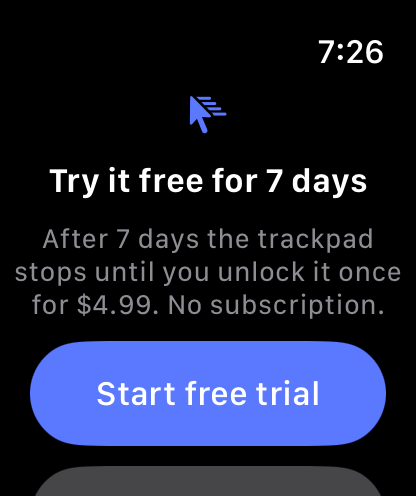
Free for 7 days.
Then US$4.99, once.
A$7.99 in Australia. The App Store shows the price for your country.
Reinstalling doesn’t restart the trial. Already bought it? Tap Restore purchase on the unlock screen. Family Sharing isn’t available for Wremote Pro.
Get Wremote
What you need.
Your Apple Watch and a Mac or PC with Bluetooth. The trial and Wremote Pro come through the App Store, with your Apple Account.
-
 Coming soon to the App Store
Wremote for Apple Watch
watchOS 10 or later. 7‑day free trial.
-
Coming soon
Wremote for Mac
Free menu bar app. macOS 14 Sonoma or later.
-
Ask for the test version
Wremote for Windows Test version
Free notification-area app. Windows 10 version 2004 or later, or Windows 11.
On a PC, Bluetooth must support the peripheral role. If yours can’t, a USB Bluetooth 5 adapter usually fixes it.
Questions
Short answers.
Setup steps and fixes are on the support page.
Does it work with an iPad?
No. Wremote controls a Mac or a Windows PC. It doesn’t control an iPad or an iPhone.
Can more than one watch control my computer?
Yes. Each watch pairs once with its own code, and you can forget any of them from the Wremote menu on your Mac or PC.
How do I get a refund?
Refunds for App Store purchases are made by Apple. Go to reportaproblem.apple.com, sign in and choose Wremote Pro. If Wremote isn’t working for you, email us too.
Does it collect my data?
No. No analytics, no ads, no accounts and no tracking. Read the privacy policy.